Table of Contents
Installation CentOS 7
Foreword
The CentOS will be installed at two disks: Solid state disk and Mechanical hard disk. The SSD should correspond to SATA interface I and the mechanical hard disk corresponds to SATA interface II. If not, then you should exchange the two disk cables that link to SATA interface.
black IP: 101.6.121.172

white IP: 101.6.121.69
Prepare USB installation disk
BIOS setup
BIOS needs to setup to allow booting from USB disk
- Press “Delete” in keyboard (depend on the PC) to go into BIOS
- Change to “Boot” item and make “USB driver first”
- Save and Exit
CentOS server installation
* Insert the USB driver and reboot the computer (Repeat the BIOS setup if the computer doesn't boot from USB).
Choose Install Centos 7
Choose English as language
Choose Shanghai as the time zone
Software Selection: GNOME Desktop (add-Ons: GNOME Applications; Compatibility Libraries; Development Tools; System Administration Tools)
Installation destination: select the two hard disks and then "I will configure a partitioning"

^                             ^ Mount Point  ^ Capacity     ^ File System  ^
| Solid-state disk (sda1)     | /boot/efi    | 600M         | 默认         |
| Solid-state disk (sda2)     | swap         | 32G          | swap         |
| Solid-state disk (sda3)     | /            | other space  | ext4         |
| Mechanical hard disk (sdb1) | /home        | all space    | ext4         |

Connect the internet and rename the host name
Add root password and new user
Basic package installation
sudo yum update
sudo yum install gcc gcc-gfortran gcc-c++
sudo yum install vim-X11 mousepad imagemagick
sudo yum install tcsh cmake
sudo yum install xterm tcl tk
sudo yum install boost-devel

sudo yum install python2
sudo yum install python2-pip
sudo pip2 install --upgrade pip
sudo pip install numpy scipy
# when install matplotlib, error occurs for pyparsing
# need to manually delete pyparsing
sudo rm -r /usr/lib/python2.7/site-packages/pyparsing*
sudo pip install pyparsing
sudo yum install python-ipython
sudo yum install tkinter
sudo yum -y install tcl-devel tk-devel
sudo yum install python3
sudo pip3 install --upgrade pip
sudo pip3 install numpy matplotlib scipy ipython
#install python3 tkinter
sudo yum install python3-tk* -y
sudo yum install tk-devel -y
cd /bin
sudo ln -sf python3 python (this will mess up yum!)
sudo vi /usr/bin/ipython (to make the first line "#!/usr/bin/python")


sudo yum install ImageMagick gimp
* if want to use higher version of gcc
library and font installation for nmrPipe/Sparky/pymol/topspin
sudo yum install libstdc++.i686
sudo yum install libX11.i686
sudo yum install libXext.i686
sudo yum install xorg-x11-fonts-100dpi xorg-x11-fonts-75dpi
sudo yum install xorg-x11-fonts-ISO8859-1-100dpi xorg-x11-fonts-ISO8859-1-75dpi
sudo yum install mesa-libGLU
sudo yum install libXScrnSaver
# for topspin
sudo yum install libXft.i686
sudo yum install libXtst.i686
X2Go server & Xfce installation
sudo yum install epel-release
sudo yum -y install x2goserver-xsession
sudo yum -y groupinstall "Xfce"
Topspin installation
ATTENTION!!!
Topspin versions before 4.0 required 32-bite libraries, which are not installed automatically on RHEL-7/CentOS-7, first install these library: https://repo-bbio.bruker.com/CentOS/7/TopSpinInstallationRequirements.html
Topspin 3.6.2
- step 1: sudo bash topspin-3.6.2-linux.sh
- step 2: click next with the default
- step 3:
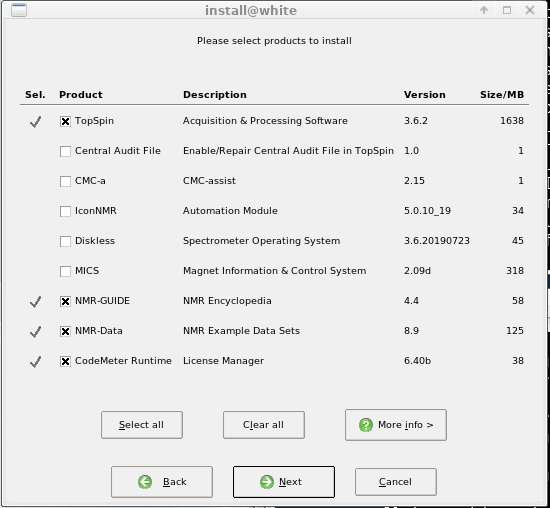
- step 4: request & input the licence key with educational email
- step 5: set password(nmriscool!)
- step 6: mv /opt/topspin3.6.2/prog/mod/toolserver toolserver.bak (if not, the toolserver can't work)

Topspin 4.1.0
- step 1: sudo bash topspin-4.1.0-linux.sh
- step 2: click next with the default
- step 3:
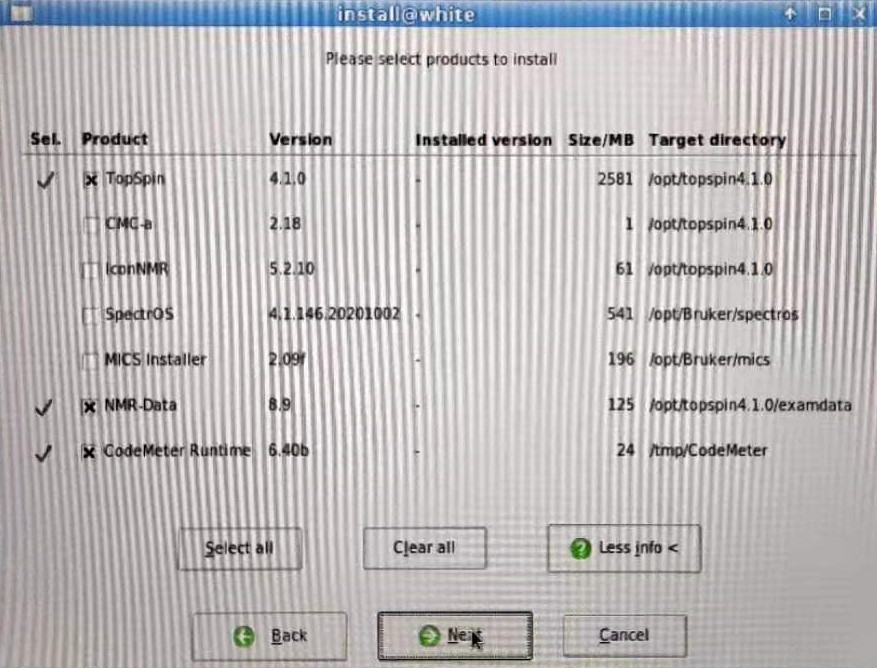
- step 4: request & input the licence key with educational email
- step 5: set password(nmriscool!)
- step 6: the toolserver can work normally

Setup openssh server on spectrometer
- Download OpenSSH-Win64.zip: https://github.com/PowerShell/Win32-OpenSSH/releases
- Install it on spectrometer computer ref
# first exact to C:\Program Files\OpenSSH
# then open "cmd" window, enter into this folder, and do the following
### Install sshd service
powershell.exe -ExecutionPolicy Bypass -File install-sshd.ps1
### enable port 22
netsh advfirewall firewall add rule name=sshd dir=in action=allow protocol=TCP localport=22
### configure startup of the service
sc config sshd start= auto
### start the service
net start sshd
- add C:\Program Files\OpenSSH into Sys path in Windows 7
- copy three rsync-relevant files from cygwin or mysys2 to C:\Program Files\OpenSSH ref
Mathematica installation
ssh -Y xuelab@localhost
密码:NMR1sC00L!
cd build/mathematica/12.1(software package)
sudo mkdir /mnt/iso (creat mount point)
sudo mount -o loop xxxx.iso /mnt/iso (mount the iso)
sh /mnt/iso/xxx.sh (run the installar)
> /home/usr/share/Wolfram/Mathematica/12.1 (Methematica install path)
> /home/usr/bin (scripts install path)
########################### CRACK ###############################
Crack folder: build/mathematica/12.1(copy from /mnt/iso/)
METHOD:
1 select active manually
2 open https://ibugone.com/blog/2019/05/mathematica-keygen/ (from .url in crack, local PC may faster)
3 generate key for the code in first step
FINISH
##################################################################
cp build/mathematica/Poma2.m /home/usr/share/Wolfram/Mathematica/12.1/AddOns/ExtraPackages/(for pulse calculation)
last: umount -v /mnt/iso/ (unount the iso)
Nvidia driver installation
Add & Del user
cd cmd
vim adduser.sh: change UserName:xuelab and uid:3500(uid according to /etc/passwd)
sudo ./adduser.sh
###remove user###
sudo userdel -r username
Installation CentOS 8
Foreword
The CentOS will be installed at two disks: Solid state disk and Mechanical hard disk. The SSD should correspond to SATA interface I and the mechanical hard disk corresponds to SATA interface II. If not, then you should exchange the two disk cables that link to SATA interface.
Prepare USB installation disk
- Download the latest CentOS minimal iso this link
- Make bootable USB disk:
- Download <fc #ff0000>liveusb-creator</fc>, run it and load the .iso file into it.
BIOS setup
BIOS needs to setup to allow booting from USB disk
- Press “Delete” in keyboard (depend on the PC) to go into BIOS
- Change to “Boot” item and make “USB driver first”
- Save and Exit
CentOS server installation
* Insert the USB driver and reboot the computer (Repeat the BIOS setup if the computer doesn't boot from USB).
Choose Install Centos 8
Choose English as language
Choose Shanghai as the time zone
Choose to installl Sever version environment and select the additional software (1-3,6-12,15,18)
Installation destination: select the two hard disks and then "I will configure a partitioning"

^                             ^ Mount Point  ^ Capacity     ^ File System  ^
| Solid-state disk (sda1)     | /boot/efi    | 600M         | 默认         |
| Solid-state disk (sda2)     | swap         | 32G          | swap         |
| Solid-state disk (sda3)     | /            | other space  | ext4         |
| Mechanical hard disk (sdb1) | /home        | all space    | ext4         |
Choose the network card the internet tube links to and switch on
Add the host name or you can alter it by command line (vim /etc/hostname and /etc/hosts)
Server with GUI installation
sudo yum group list
sudo yum  groupinstall "Server with GUI" -y
sudo systemctl set-default graphical
sudo reboot
Basic package installation
sudo yum update
sudo yum install gcc
sudo yum install python2
sudo yum install python38
sudo yum install gcc-gfortran
sudo yum install tcsh
x2go server installation
sudo dnf -y update
sudo dnf --enablerepo=PowerTools install perl-X2Go-Server-DB perl-File-BaseDir fuse-sshfs
sudo dnf install https://dl.fedoraproject.org/pub/epel/epel-release-latest-8.noarch.rpm
sudo dnf install -y x2goserver-xsession
Xfce installation
1 安装xfce: sudo dnf groupinstall -y "xfce"
2 安装好后进入桌面: sudo systemctl isolate graphical.target
3 设置默认启动为图形化界面: sudo systemctl set-default graphical.target
4 远程登录xfce后操作: Applications-->setting-->Screensaver-->Screensaver & LockScreen "OFF"
5 若登录xfce后屏幕失效:用putty或xshell登录:(1)top -u UserName, (2) k pid (of the xfce-Session), (3) operate step 4
Python package installation
sudo pip2 install --upgrade pip
sudo pip2 install numpy matplotlib scipy ipython tk
sudo yum install python3-tk
sudo yum -y install python-tkinter tcl-devel tkdevel
32-bit library installation
- Configure yum Ref
编辑 /etc/yum.repos.d/CentOS-Base.repo 文件,在 mirrorlist= 开头行前面加 # 注释掉;并将 baseurl= 开头行取消注释(如果被注释的话),把该行内的域名(例如mirror.centos.org)替换为 mirrors.tuna.tsinghua.edu.cn。
sudo yum makecache
- Make windows default in dual boot of CentOS/Win7