
For internal use
Sidebar
ubuntu
Table of Contents
Quick Links
Installation
Prepare USB installation disk
- Download the latest Ubuntu TLS minimum CD from this link
- Make bootable USB disk (Yi's approach):
- Format a USB disk to FAT32 under windows
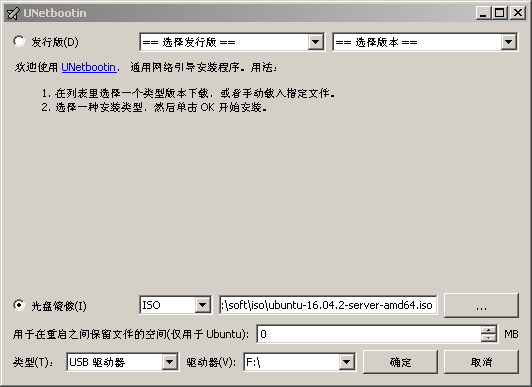
- Download unetbootin, run it and load ubuntu iso file into it.
BIOS setup
BIOS needs to setup to allow booting from USB disk
- press F2 # Go into BIOS Utility
- press F5 # Default setting
- press F7 # Go into Advanced Mode
- press F12 # Go into boot menu
- Go to Boot menu in BIOS interface and move to “CSM” item, and make sure you have the following setup
| Launch CSM | Enabled |
| BOOT Device Control | UEFI only |
| BOOT from Network Device | UEFI driver first |
| BOOT from Storage Devices | UEFI driver first |
| BOOT from PCI-E/PCI Expansion Devices | UEFI driver first |
- Move to “Secure Boot” item, and make sure you have the following setup
| OS Type | other OS |
- Exit/Save
Ubuntu server installation
- Boot the computer(rainbow), press F12, boot from UFEI USB disk, and choose Install Ubuntu Server.
Choose English as language, the U.S. as country.
Always continue.
Choose the first network card: ‘enp0s319f6: Intel corporation Ethernet [2] 1215-V’.
Set the Hostname(rainbow), username.
Always continue, No encryption.
Choose East of the U.S. as the time zone.
Unmount partitions that are in use? Yes.
- Partition disks
From  to
to  /Don’t assign a swap partition, don't update the system auto.
- Software selection
| Samba server |
| SSH server |
- Follow the instruction to finish the installation, and reboot into the new system
Create user accounts
- Log into root
- Add group “xue”
groupadd -g 3500 xue
  * Edit passwd to change the belongings of the first user
   vim /etc/passwd
   into:yxue,3568(user id):3500(group id)
   *change the group belongings of folder yxue
   chown yxue:xue xue
- Add user by running cmd/adduser.sh
- Setup sudo
apt-get install vim
visudo
Add the following block in the text file invoked by visudo command
## Same thing without a password
# %wheel ALL=(ALL) NOPASSWD: ALL
yxue ALL=(ALL) NOPASSWD: ALL
zhouqiao ALL=(ALL) NOPASSWD: ALL
panying ALL=(ALL) NOPASSWD: ALL
Change mirror of Ubuntu
cp ~yxue/.vimrc .
*Edit sourcelist
*change Ubuntu mirror into http://mirror.tuna.tsinghua.edu.cn,uncomment security alternatives
    vim /etc/apt/sourcelist
    apt-get update
Install packages
- Xfce4
sudo apt-get install xfce4 xfce4-terminal
- GNU compiler
sudo apt-get install gcc gfortran g++
- Python packages
sudo apt-get install libopenblas-base libopenblas-dev
sudo update-alternatives --all
  * to make sure openblas becomes the default BLAS library
  * path priority is */vim.basic > */vim.gtk3-py2 > */vim.gonme
sudo apt-get install python-numpy python-matplotlib python-scipy ipython ipython-notebook
- Make sure that numpy is correctly linked to openblas
cd /usr/lib/python2.7/dist-packages/numpy/linalg
ldd lapack_lite.x86_64-linux-gnu.so
*u will find this
libopenblas.so.0 => /usr/lib/libopenblas.so.0 (0x00007ff6ebd1b000)
- if it points to openblas, then okay!
- Disable screensaver to save CPU resources
sudo dpkg --purge xscreensaver
sudo dpkg --purge xscreensaver-data
    dpkg: warning: ignoring request to remove xscreensaver-data which isn't installed???
- Common X11 applications
sudo apt-get install chromium-browser leafpad mlterm rox-filer xpdf gimp imagemagick vim-gnome links geeqie
- Install boost
apt-get install libboost-all-dev
Installation of 32-bit library
- Type the following commands
sudo apt-get install lib32z1
sudo apt-get install libx11-6:i386
sudo apt-get install libstdc++6:i386  # for sparky
sudo apt-get install libxext6:i386  # for nmrPipe

# fonts needed for nmrDraw
sudo apt-get install xfonts-75dpi xfonts-100dpi

# for running dtrek2jpeg only
sudo apt-get install libjpeg62:i386
Install X2GO server
sudo apt-get install software-properties-common
sudo add-apt-repository ppa:x2go/stable
sudo apt-get update
sudo apt-get install x2goserver x2goserver-xsession
IP and DNS server Setup
For old ubuntu
vi /etc/network/interface
    dns-nameservers 166.111.8.28 166.111.8.29 #add this line to appointed network interface
/etc/init.d/networking restart
For ubuntu 18.04 or newer
sudo netplan generate

sudo vim /etc/netplan/01-netcfg.yaml

 enp0s8:
      dhcp4: no
      dhcp6: no
      addresses: [192.168.56.110/24, ]
      gateway4:  192.168.56.1
      nameservers:
              addresses: [8.8.8.8, 8.8.4.4]

sudo netplan apply
Configure Samba
- reference: samba
ubuntu.txt · Last modified: 2020/07/15 03:33 by 127.0.0.1
Except where otherwise noted, content on this wiki is licensed under the following license: CC Attribution-Share Alike 4.0 International


